Fairness and Explainability with SageMaker Clarify - JSON Lines Format
Overview
Amazon SageMaker Clarify helps improve your machine learning models by detecting potential bias and helping explain how these models make predictions. The fairness and explainability functionality provided by SageMaker Clarify takes a step towards enabling AWS customers to build trustworthy and understandable machine learning models. The product comes with the tools to help you with the following tasks.
Measure biases that can occur during each stage of the ML lifecycle (data collection, model training and tuning, and monitoring of ML models deployed for inference).
Generate model governance reports targeting risk and compliance teams and external regulators.
Provide explanations of the data, models, and monitoring used to assess predictions.
In doing so, the notebook will first train a SageMaker Linear Learner model using training dataset, then use SageMaker Clarify to analyze a testing dataset in SageMaker JSON Lines dense format. SageMaker Clarify also supports analyzing CSV dataset, which is illustrated in another notebook.
Prerequisites and Data
Initialize SageMaker
[ ]:
from sagemaker import Session

session = Session()
bucket = session.default_bucket()
prefix = "sagemaker/DEMO-sagemaker-clarify-jsonlines"
region = session.boto_region_name
# Define IAM role
from sagemaker import get_execution_role
import pandas as pd
import numpy as np
import os
import boto3
from datetime import datetime

role = get_execution_role()
s3_client = boto3.client("s3")
Download data
Data Source: https://archive.ics.uci.edu/ml/machine-learning-databases/adult/
Let’s download the data and save it in the local folder with the name adult.data and adult.test from UCI repository\(^{[2]}\).
\(^{[2]}\)Dua Dheeru, and Efi Karra Taniskidou. “UCI Machine Learning Repository”. Irvine, CA: University of California, School of Information and Computer Science (2017).
[ ]:
adult_columns = [
    "Age",
    "Workclass",
    "fnlwgt",
    "Education",
    "Education-Num",
    "Marital Status",
    "Occupation",
    "Relationship",
    "Ethnic group",
    "Sex",
    "Capital Gain",
    "Capital Loss",
    "Hours per week",
    "Country",
    "Target",
]
if not os.path.isfile("adult.data"):
    s3_client.download_file(
        "sagemaker-sample-files", "datasets/tabular/uci_adult/adult.data", "adult.data"
    )
    print("adult.data saved!")
else:
    print("adult.data already on disk.")

if not os.path.isfile("adult.test"):
    s3_client.download_file(
        "sagemaker-sample-files", "datasets/tabular/uci_adult/adult.test", "adult.test"
    )
    print("adult.test saved!")
else:
    print("adult.test already on disk.")
Loading the data: Adult Dataset
From the UCI repository of machine learning datasets, this database contains 14 features concerning demographic characteristics of 45,222 rows (32,561 for training and 12,661 for testing). The task is to predict whether a person has a yearly income that is more or less than $50,000.
Here are the features and their possible values: 1. Age: continuous. 1. Workclass: Private, Self-emp-not-inc, Self-emp-inc, Federal-gov, Local-gov, State-gov, Without-pay, Never-worked. 1. Fnlwgt: continuous (the number of people the census takers believe that observation represents). 1. Education: Bachelors, Some-college, 11th, HS-grad, Prof-school, Assoc-acdm, Assoc-voc, 9th, 7th-8th, 12th, Masters, 1st-4th, 10th, Doctorate, 5th-6th, Preschool. 1. Education-num: continuous. 1. Marital-status: Married-civ-spouse, Divorced, Never-married, Separated, Widowed, Married-spouse-absent, Married-AF-spouse. 1. Occupation: Tech-support, Craft-repair, Other-service, Sales, Exec-managerial, Prof-specialty, Handlers-cleaners, Machine-op-inspct, Adm-clerical, Farming-fishing, Transport-moving, Priv-house-serv, Protective-serv, Armed-Forces. 1. Relationship: Wife, Own-child, Husband, Not-in-family, Other-relative, Unmarried. 1. Ethnic group: White, Asian-Pac-Islander, Amer-Indian-Eskimo, Other, Black. 1. Sex: Female, Male. * Note: this data is extracted from the 1994 Census and enforces a binary option on Sex 1. Capital-gain: continuous. 1. Capital-loss: continuous. 1. Hours-per-week: continuous. 1. Native-country: United-States, Cambodia, England, Puerto-Rico, Canada, Germany, Outlying-US(Guam-USVI-etc), India, Japan, Greece, South, China, Cuba, Iran, Honduras, Philippines, Italy, Poland, Jamaica, Vietnam, Mexico, Portugal, Ireland, France, Dominican-Republic, Laos, Ecuador, Taiwan, Haiti, Columbia, Hungary, Guatemala, Nicaragua, Scotland, Thailand, Yugoslavia, El-Salvador, Trinadad&Tobago, Peru, Hong, Holand-Netherlands.
[ ]:
training_data = pd.read_csv(
    "adult.data", names=adult_columns, sep=r"\s*,\s*", engine="python", na_values="?"
).dropna()

testing_data = pd.read_csv(
    "adult.test", names=adult_columns, sep=r"\s*,\s*", engine="python", na_values="?", skiprows=1
).dropna()

training_data.head()
Data inspection
[ ]:
training_data["Sex"].value_counts().sort_values().plot(kind="bar", title="Counts of Sex", rot=0)
[ ]:
training_data["Sex"].where(training_data["Target"] == ">50K").value_counts().sort_values().plot(
    kind="bar", title="Counts of Sex earning >$50K", rot=0
)
Encode and Upload the Dataset
Here we encode the training and test data. Encoding input data is not necessary for SageMaker Clarify, but is necessary for the model.
[ ]:
from sklearn import preprocessing


def number_encode_features(df):
    result = df.copy()
    encoders = {}
    for column in result.columns:
        if result.dtypes[column] == np.object:
            encoders[column] = preprocessing.LabelEncoder()
            #  print('Column:', column, result[column])
            result[column] = encoders[column].fit_transform(result[column].fillna("None"))
    return result, encoders


training_data, _ = number_encode_features(training_data)
testing_data, _ = number_encode_features(testing_data)
Then save the testing dataset to a JSON Lines file. The file conforms to SageMaker JSON Lines dense format, with an additional field to hold the ground truth label.
[ ]:
import json


def dump_to_jsonlines_file(df, filename):
    with open(filename, "w") as f:
        for _, row in df.iterrows():
            sample = {"features": row[0:-1].tolist(), "label": int(row[-1])}
            print(json.dumps(sample), file=f)


dump_to_jsonlines_file(testing_data, "test_data.jsonl")
A quick note about our encoding: the “Female” Sex value has been encoded as 0 and “Male” as 1.
[ ]:
!head -n 5 test_data.jsonl
[ ]:
testing_data.head()
Lastly, let’s upload the data to S3
[ ]:
from sagemaker.s3 import S3Uploader

test_data_uri = S3Uploader.upload("test_data.jsonl", "s3://{}/{}".format(bucket, prefix))
Train Linear Learner Model
Train Model
Since our focus is on understanding how to use SageMaker Clarify, we keep it simple by using a standard Linear Learner model.
[ ]:
from sagemaker.image_uris import retrieve
from sagemaker.amazon.linear_learner import LinearLearner

ll = LinearLearner(
    role,
    instance_count=1,
    instance_type="ml.m5.xlarge",
    predictor_type="binary_classifier",
    sagemaker_session=session,
)
training_target = training_data["Target"].to_numpy().astype(np.float32)
training_features = training_data.drop(["Target"], axis=1).to_numpy().astype(np.float32)
ll.fit(ll.record_set(training_features, training_target), logs=False)
Deploy Model
Here we create the SageMaker model.
[ ]:
model_name = "DEMO-clarify-ll-model-{}".format(datetime.now().strftime("%d-%m-%Y-%H-%M-%S"))
model = ll.create_model(name=model_name)
container_def = model.prepare_container_def()
session.create_model(model_name, role, container_def)
Amazon SageMaker Clarify
Now that you have your model set up. Let’s say hello to SageMaker Clarify!
[ ]:
from sagemaker import clarify

clarify_processor = clarify.SageMakerClarifyProcessor(
    role=role, instance_count=1, instance_type="ml.m5.xlarge", sagemaker_session=session
)
Detecting Bias
SageMaker Clarify helps you detect possible pre- and post-training biases using a variety of metrics. #### Writing DataConfig and ModelConfig A DataConfig object communicates some basic information about data I/O to SageMaker Clarify. We specify where to find the input dataset, where to store the output, the target column (label), the header names, and the dataset type.
Some special things to note about this configuration for the JSON Lines dataset, * Argument features or label is NOT header string. Instead, it is a JSONPath string to locate the features list or label in the dataset. For example, for a sample like below, features should be ‘data.features.values’, and label should be ‘data.label’.
{"data": {"features": {"values": [25, 2, 226802, 1, 7, 4, 6, 3, 2, 1, 0, 0, 40, 37]}, "label": 0}}
SageMaker Clarify will load the JSON Lines dataset into tabular representation for further analysis, and argument
headersis the list of column names. The label header shall be the last one in the headers list, and the order of feature headers shall be the same as the order of features in a sample.
[ ]:
bias_report_output_path = "s3://{}/{}/clarify-bias".format(bucket, prefix)
bias_data_config = clarify.DataConfig(
    s3_data_input_path=test_data_uri,
    s3_output_path=bias_report_output_path,
    features="features",
    label="label",
    headers=testing_data.columns.to_list(),
    dataset_type="application/jsonlines",
)
A ModelConfig object communicates information about your trained model. To avoid additional traffic to your production models, SageMaker Clarify sets up and tears down a dedicated endpoint when processing. * instance_type and instance_count specify your preferred instance type and instance count used to run your model on during SageMaker Clarify’s processing. The testing dataset is small so a single standard instance is good enough to run this example. If your have a large complex
dataset, you may want to use a better instance type to speed up, or add more instances to enable Spark parallelization. * accept_type denotes the endpoint response payload format, and content_type denotes the payload format of request to the endpoint. * content_template is used by SageMaker Clarify to compose the request payload if the content type is JSON Lines. To be more specific, the placeholder $features will be replaced by the features list from samples. The request
payload of a sample from the testing dataset happens to be similar to the sample itself, like '{"features": [25, 2, 226802, 1, 7, 4, 6, 3, 2, 1, 0, 0, 40, 37]}', because both the dataset and the model input conform to SageMaker JSON Lines dense format.
[ ]:
model_config = clarify.ModelConfig(
    model_name=model_name,
    instance_type="ml.m5.xlarge",
    instance_count=1,
    accept_type="application/jsonlines",
    content_type="application/jsonlines",
    content_template='{"features":$features}',
)
A ModelPredictedLabelConfig provides information on the format of your predictions. The argument label is a JSONPath string to locate the predicted label in endpoint response. In this case, the response payload for a single sample request looks like '{"predicted_label": 0, "score": 0.013525663875043}', so SageMaker Clarify can find predicted label 0 by JSONPath 'predicted_label'. There is also probability score in the response, so it is possible to use another combination of
arguments to decide the predicted label by a custom threshold, for example probability='score' and probability_threshold=0.8.
[ ]:
predictions_config = clarify.ModelPredictedLabelConfig(label="predicted_label")
If you are building your own model, then you may choose a different JSON Lines format, as long as it has the key elements like label and features list, and request payload built using content_template is supported by the model (you can customize the template but the placeholder of features list must be $features). Also, dataset_type, accept_type and content_type don’t have to be the same, for example, a use case may use CSV dataset and content type, but JSON Lines accept
type.
Writing BiasConfig
SageMaker Clarify also needs information on what the sensitive columns (facets) are, what the sensitive features (facet_values_or_threshold) may be, and what the desirable outcomes are (label_values_or_threshold). SageMaker Clarify can handle both categorical and continuous data for facet_values_or_threshold and for label_values_or_threshold. In this case we are using categorical data.
We specify this information in the BiasConfig API. Here that the positive outcome is earning >$50,000, Sex is a sensitive category, and Female respondents are the sensitive group. group_name is used to form subgroups for the measurement of Conditional Demographic Disparity in Labels (CDDL) and Conditional Demographic Disparity in Predicted Labels (CDDPL) with regards to Simpson’s paradox.
[ ]:
bias_config = clarify.BiasConfig(
    label_values_or_threshold=[1], facet_name="Sex", facet_values_or_threshold=[0], group_name="Age"
)
Pre-training Bias
Bias can be present in your data before any model training occurs. Inspecting your data for bias before training begins can help detect any data collection gaps, inform your feature engineering, and hep you understand what societal biases the data may reflect.
Computing pre-training bias metrics does not require a trained model.
Post-training Bias
Computing post-training bias metrics does require a trained model.
Unbiased training data (as determined by concepts of fairness measured by bias metric) may still result in biased model predictions after training. Whether this occurs depends on several factors including hyperparameter choices.
You can run these options separately with run_pre_training_bias() and run_post_training_bias() or at the same time with run_bias() as shown below.
[ ]:
clarify_processor.run_bias(
    data_config=bias_data_config,
    bias_config=bias_config,
    model_config=model_config,
    model_predicted_label_config=predictions_config,
    pre_training_methods="all",
    post_training_methods="all",
)
Viewing the Bias Report
In Studio, you can view the results under the experiments tab.
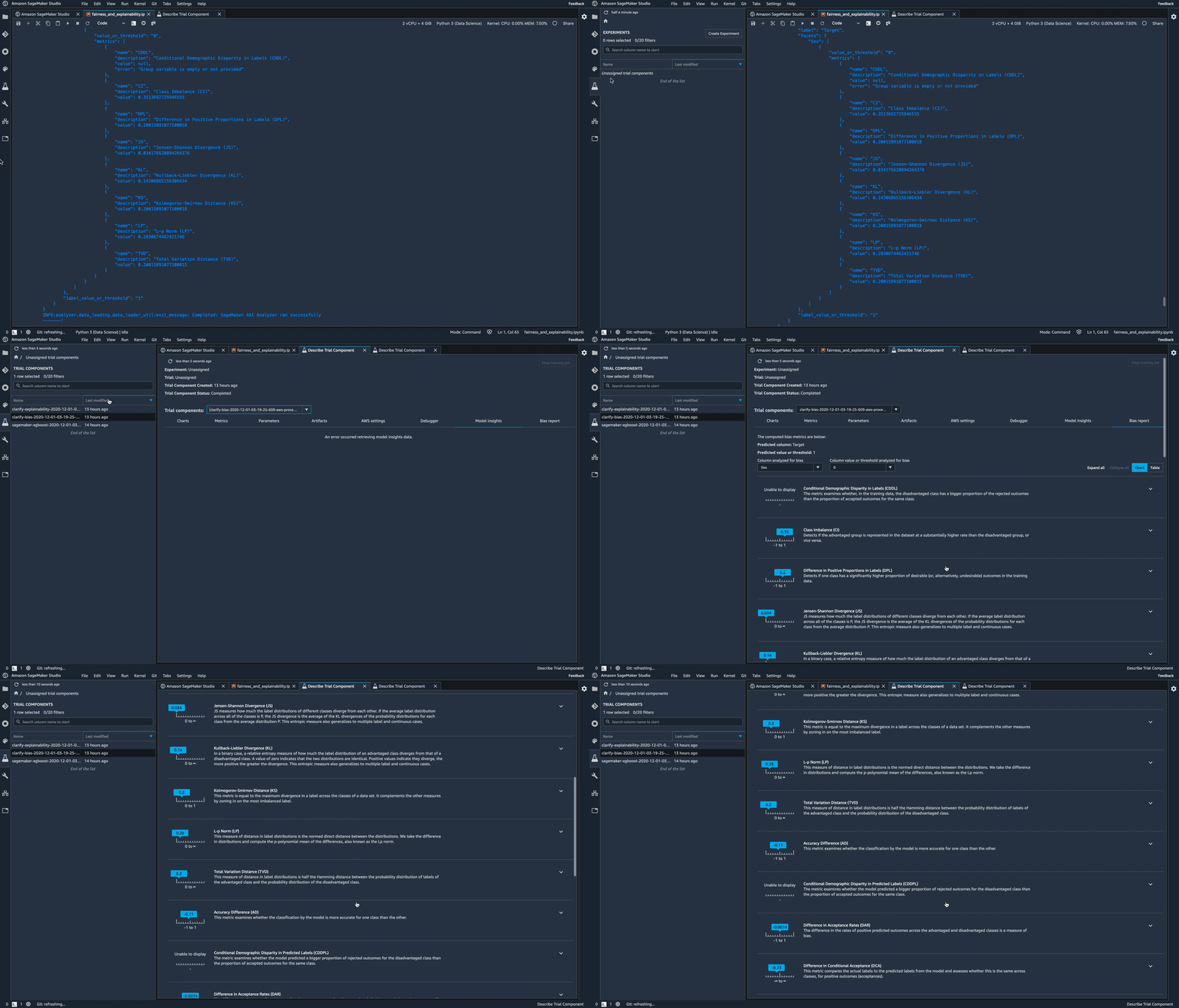
Each bias metric has detailed explanations with examples that you can explore.

You could also summarize the results in a handy table!
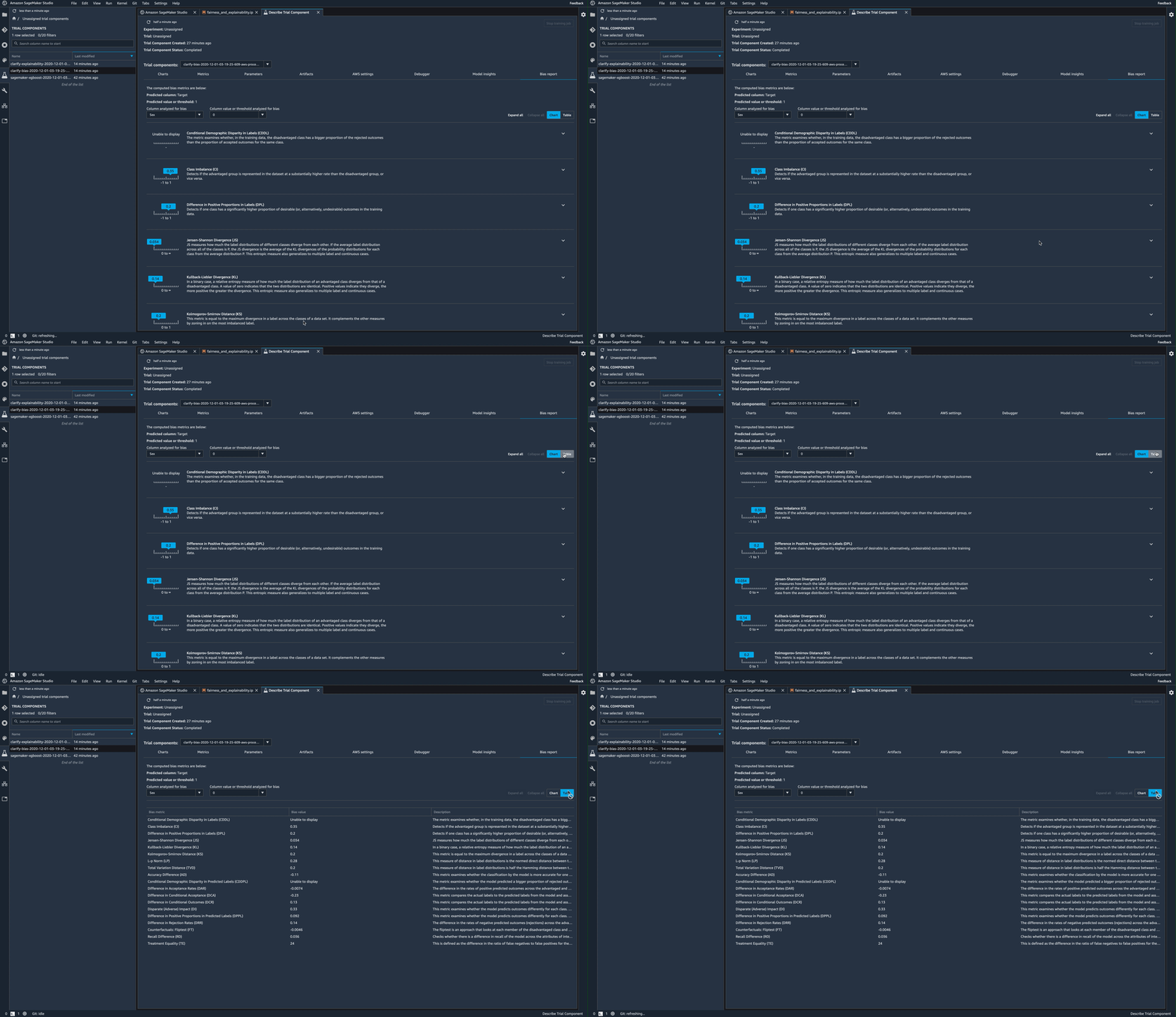
If you’re not a Studio user yet, you can access the bias report in pdf, html and ipynb formats in the following S3 bucket:
[ ]:
bias_report_output_path
Explaining Predictions
There are expanding business needs and legislative regulations that require explanations of why a model made the decision it did. SageMaker Clarify uses SHAP to explain the contribution that each input feature makes to the final decision.
Kernel SHAP algorithm requires a baseline (also known as background dataset). Baseline dataset type shall be the same as dataset_type of DataConfig, and baseline samples shall only include features. By definition, baseline should either be a S3 URI to the baseline dataset file, or an in-place list of samples. In this case we chose the latter, and put the first sample of the test dataset to the list.
[ ]:
# pick up the first line, load as JSON, then exclude the label (i.e., only keep the features)
with open("test_data.jsonl") as f:
    baseline_sample = json.loads(f.readline())
del baseline_sample["label"]
baseline_sample
[ ]:
# Similarly, excluding label header from headers list
headers = testing_data.columns.to_list()
headers.remove("Target")
print(headers)
[ ]:
shap_config = clarify.SHAPConfig(
    baseline=[baseline_sample], num_samples=15, agg_method="mean_abs", save_local_shap_values=False
)

explainability_output_path = "s3://{}/{}/clarify-explainability".format(bucket, prefix)
explainability_data_config = clarify.DataConfig(
    s3_data_input_path=test_data_uri,
    s3_output_path=explainability_output_path,
    features="features",
    headers=headers,
    dataset_type="application/jsonlines",
)
Run the explainability job, note that Kernel SHAP algorithm requires probability prediction, so JSONPath "score" is used to extract the probability.
[ ]:
clarify_processor.run_explainability(
    data_config=explainability_data_config,
    model_config=model_config,
    explainability_config=shap_config,
    model_scores="score",
)
Viewing the Explainability Report
As with the bias report, you can view the explainability report in Studio under the experiments tab
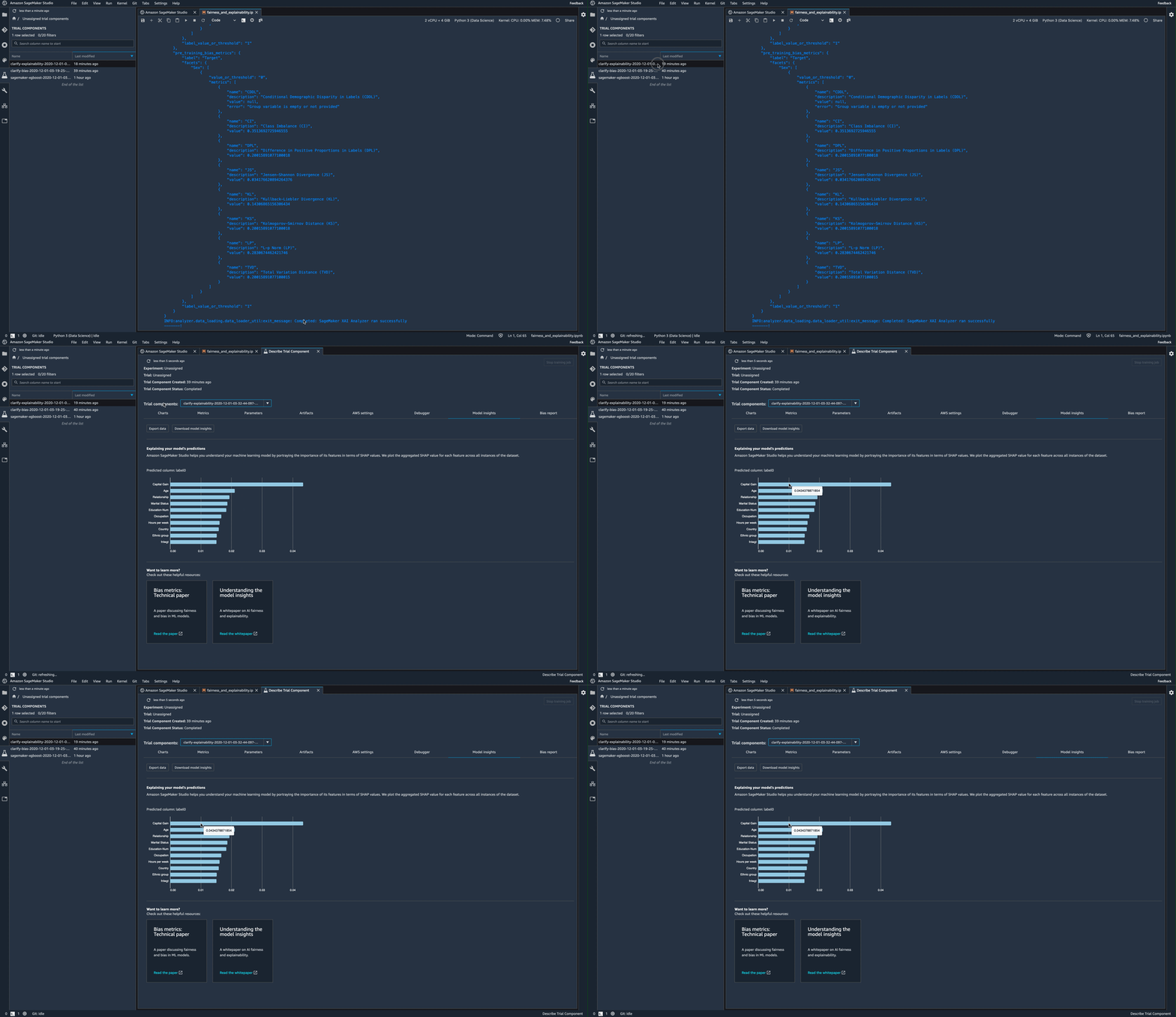
The Model Insights tab contains direct links to the report and model insights.
If you’re not a Studio user yet, as with the Bias Report, you can access this report at the following S3 bucket.
[ ]:
explainability_output_path
Clean Up
Finally, don’t forget to clean up the resources we set up and used for this demo!
[ ]:
session.delete_model(model_name)